
Case Archive
What is it?
The Case Archive is the comprehensive reporting and history section where all past and current cases are stored, searchable, and exportable for analysis. It serves as the central repository for all customer interactions that have occurred through your Helpdesk system.
- Purpose: Provides a centralized database for all customer interactions across all channels, enabling detailed case inspection, historical analysis, quality assurance reviews, and compliance reporting. Allows organizations to track every customer touchpoint, analyze resolution patterns, and extract insights from conversational data.
- Value: Enables managers to conduct quality assurance reviews, agents to access customer history for context, analysts to identify trends and patterns. Essential for data-driven decision-making, agent coaching, customer journey analysis, and strategic planning.
- Scope: Case Archive is one of the core sections within Helpdesk (alongside Inbox and Realtime Dashboard). It contains ALL cases regardless of their current status—Waiting, Attending, Idle, Resolved, or Discarded. Unlike Inbox which shows only active operational cases, Case Archive provides the complete historical view with full conversation threads, metadata, and audit trails preserved indefinitely.
Key Concepts
Case: A complete interaction record between a customer and your organization, including:
- All messages exchanged throughout the entire conversation lifecycle
- Complete conversation thread with timestamps for every message
- Channel information (WhatsApp, webchat, voice, etc.)
- Agent assignments, transfers, and status changes with timestamps
- Internal notes added by agents
- Contact reasons (typifications) selected upon resolution
- Customer satisfaction ratings (if collected)
- Resolution status and outcome
- User information and unique identifiers
- Attachments, media, and template messages sent
Contact Reasons (Typifications): Categorical labels applied when resolving cases that classify the nature of customer inquiries. These structured categories enable:
- Filtering and reporting by inquiry type
- Trend identification and volume analysis
- Category-specific performance metrics
- Resource allocation decisions based on demand patterns
- Knowledge base content prioritization
Date Range Filtering: Case Archive defaults to showing the last day of cases but allows custom date range selection. Users can filter by:
Export Functionality: Cases can be exported to CSV format with all metadata fields.
How to use it?
Case Archive is designed as a powerful search and analysis interface.
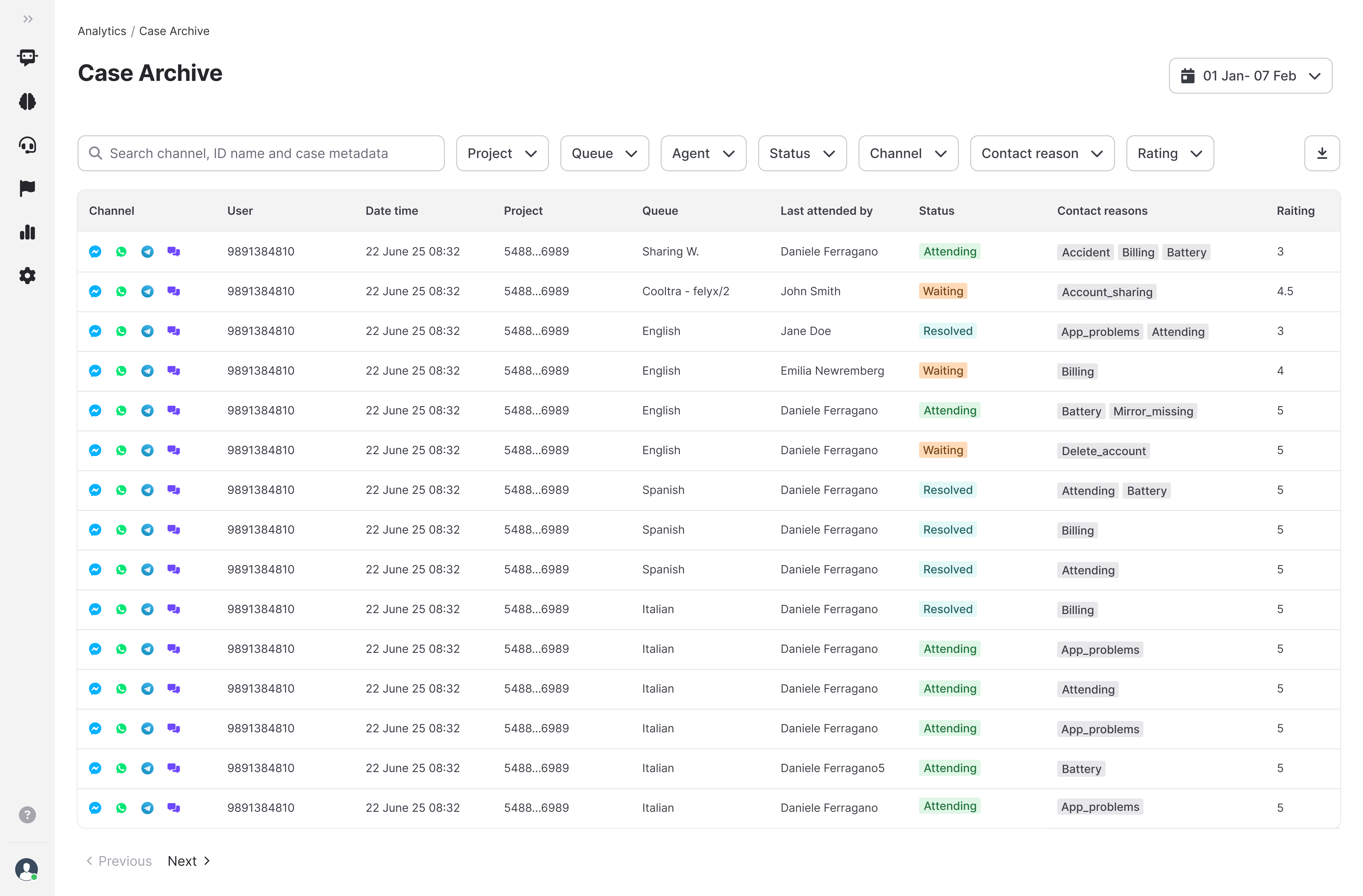
The Case Archive provides search and filtering capabilities to find specific cases or analyze subsets of conversational data:
Search Field
- Text search: Search by user name, case ID, or specific data.
Date Range Picker:
- Default: Last day of cases
- Quick select options: Yesterday, Last 7 days, Last 30 days.
- Custom range: Select specific start and end dates
- Date picker includes calendar view for easy selection
- Date range applies to case creation date by default
Filter Dropdowns:
The filter bar includes multiple dropdown menus that can be combined for precise case retrieval:
- Project: Filter by specific projects or select "All Projects" to view organization-wide
- Useful when managing multiple business units or brands
- Managers see only their assigned projects
- Queue: Narrow down to specific queues within projects
- Enables queue-specific performance analysis
- Agent: Filter cases handled by specific agents
- Essential for quality assurance reviews
- Useful for agent coaching and performance evaluation
- Shows all agents with access to selected projects/queues
- Status: Filter by current case state
- Options: Attending, Waiting, Idle, Resolved
- Can select multiple statuses simultaneously
- "Resolved" most commonly used for historical analysis
- Channel: View cases from specific communication channels
- WhatsApp, Webchat, Telegram, Facebook, Web, etc.
- Channel-specific analysis for performance comparison
- Contact Reasons: Filter by one or multiple typification categories
- Critical for category-specific analysis
- Supports multi-select (e.g., show all "Order Status" AND "Returns")
- Discarded topologies important for quality monitoring
- Discarded by system
- Discarded by user
- Discarded
- Rating: Filter by customer satisfaction scores
- 1-5 star ratings (if rating collection enabled)
- Environment: Filter by production vs. test environments (if applicable)
- Separates real customer interactions from testing
- Typically hidden if only production exists
Filter Behavior and Interaction:
- Combinable filters: Apply multiple filters simultaneously for surgical precision
- Example: "Agent: Maria" + "Status: Resolved" + "Contact Reason: Complaint" + "Rating: 1 star" = Maria's resolved complaints with 1-star ratings
- Filter chips: Active filters display as removable chips below the filter bar
- Clear visual indication of current filters
- Click X on any chip to remove that individual filter
- Easy to adjust complex filter combinations
Case List Table
The main table displays filtered cases with key information in a scannable format:
Columns Displayed:
- Case ID:
- Unique identifier in format like "019aa667-7bde-77c2-8ff1-9c95697d736a"
- Can be copied for reference in other systems
- Includes "Test" badge if from test environment
- Channel:
- Icon indicating communication channel
- WhatsApp (green speech bubble icon)
- Webchat (purple chat icon)
- Other channels with distinctive icons
- User:
- Customer name or identifier (e.g., name or email)
- Falls back to device/browser info if no name provided
- Created At:
- Timestamp when case first entered the system
- Format: DD/MM/YYYY at HH:MM (e.g., "19/11/2025 at 11:18")
- Project:
- Name of the project this case belongs to
- Queue:
- Specific queue within the project
- Assigned To:
- Agent name who handled the case
- Status:
- Current state with colored indicator
- "Resolved" (blue), "Waiting" (orange), "Attending" (green)
- Visual color coding for quick scanning
- Contact Reasons:
- Typification labels applied at resolution
- "discarded_by_system", "Problem", "General Inquiry", "Junk"
- Can show multiple reasons
- May be empty if case not yet resolved or discarded without typification
Table Interactions:
- Click any row: Opens the detailed Case Panel on the right
- Pagination controls: Bottom of table for navigating through large result sets
- Shows "Previous" and "Next" buttons
- Typically shows 15 cases per page
- Export button (top right): Download filtered results as CSV file
Case Detail Panel (Right Side)
Clicking any case in the table opens a comprehensive detail view panel on the right side of the screen. This panel provides complete case information across multiple sections:
Contact Info Section:
- User Name: Customer's name or assigned alias
- User ID: Internal system identifier for the customer
- Format: "019B0cc7-e50e-7db2-bd37-cb023192976d"
- Links all cases from same customer
- Copyable for CRM integration
- Channel ID:
- Specific channel identifier
- Example: "3465061935" (WhatsApp phone number)
- Technical reference for troubleshooting
- Country:
- Detected from phone number or user data
- Example: "United Kingdom"
- Useful for regional analysis
- Additional Custom Fields:
- Any custom contact data configured for your organization
- May include customer tier, account number, etc.
Conversation History (Main Panel Content):
The centerpiece of the detail panel showing the complete message thread:
- Complete chronological message flow:
- Every message exchanged between customer and agent(s)
- System-generated messages (assignments, transfers, status changes)
- Timestamps on every message (date and time)
- Clear visual distinction between customer and agent messages
- Internal Notes (Highlighted):
- Special formatting with note icon
- Label: "Internal note - not visible to customer"
- Shows which agent added the note
- Timestamp when note was added
- Example: "user ID 234482934923123", "user_12344829349231231"
- Scroll Functionality:
- Long conversations are scrollable within the panel
- Scroll to top to see case beginning
- Scroll to bottom for most recent messages
- Smooth scrolling for easy navigation
Previous Cases Section (Below conversation):
- Related case history:
- List of all previous cases from the same customer/user
- Chronologically ordered (most recent first)
- Includes case ID, date, and brief preview
- Clickable case links:
- Click any previous case to view its details
- Enables complete customer journey tracking
- Panel updates to show selected case
- Value for agents:
- Understand recurring issues
- See resolution history
- Identify patterns in customer behavior
- Provide better continuity of service
Available Actions (Top of Detail Panel):
- Reopen case button:
- Returns a resolved/discarded case to Waiting status
- Useful when customer issue resurfaces
- Maintains all conversation history
- Case reappears in Inbox for agent handling
- Only available for Resolved or Discarded cases
- Download case button:
- Exports complete case details as a file
- Includes full conversation transcript
- Format options: PDF, TXT, CSV
- Close panel button (X):
- Closes detail panel
- Returns focus to case list table
- Keyboard shortcut: ESC key