
Webhooks
What are webhooks?
Webhooks are a mechanism that lets your system receive automatic, real-time notifications whenever a specific event occurs in the helpdesk. Instead of manually checking for updates, the system sends an HTTP request to the URL you configure, containing details about the event.
Purpose: They solve the need to instantly know when important changes happen in cases or messages, without relying on manual checks or scheduled synchronizations.
Value:
- For end users: Enables seamless integration between the helpdesk and external systems like CRMs, reporting tools, or internal notification platforms.
- For businesses: Improves efficiency by automating workflows based on events.
Scope: The webhook system is part of the Helpdesk product. It is not a standalone tool but is designed to enhance case management through external integrations.
Key Concepts
Webhook: An HTTP POST request sent from the helpdesk to the configured customer URL.
Event: The trigger inside the helpdesk that fires the webhook (e.g., new case, new message).
Payload: The JSON body sent with the webhook containing the relevant event data.
How to use it?
UI Walk-through
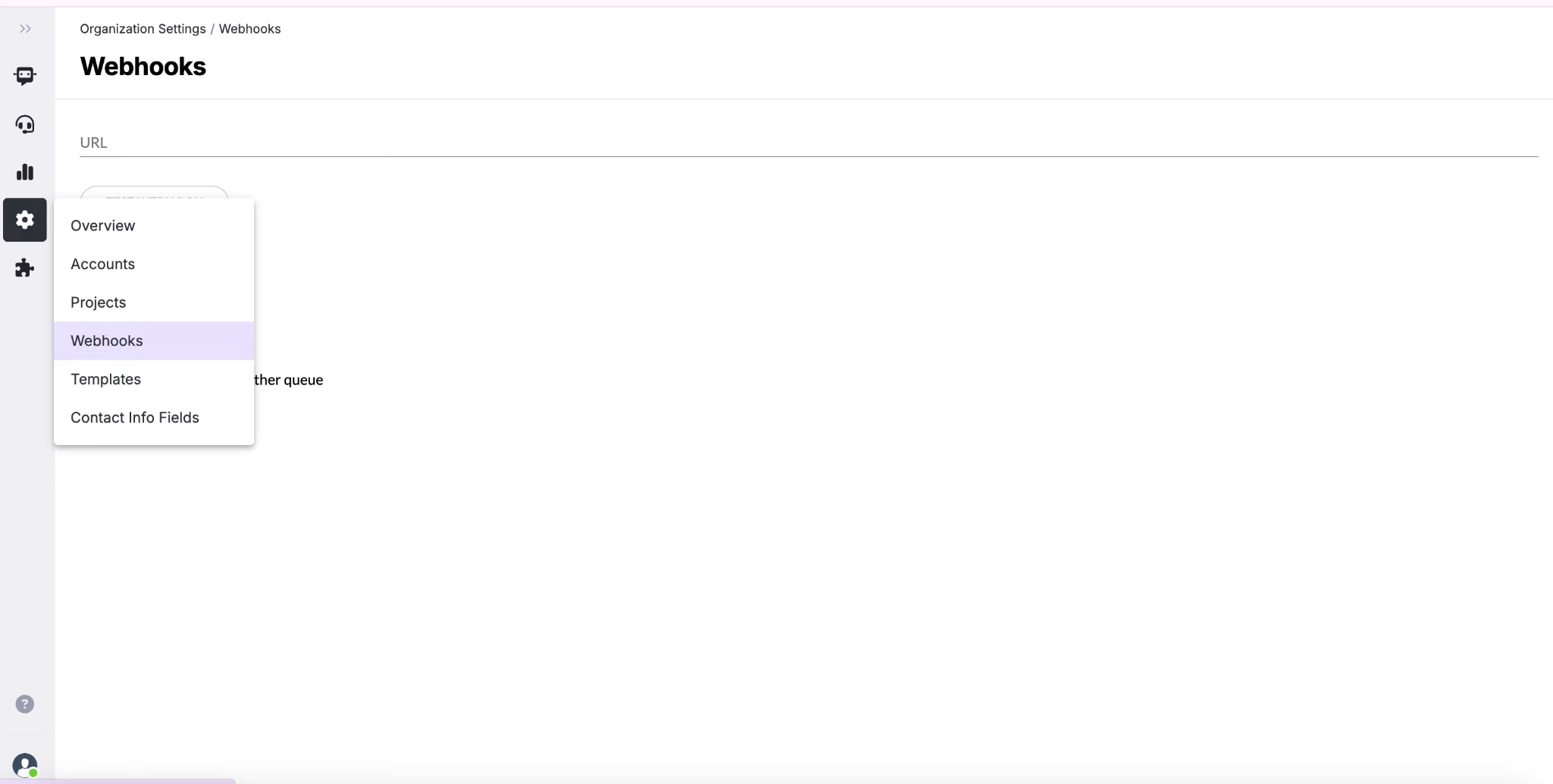
1. Go to the Webhooks section in your helpdesk settings.
2. Set the target URL: Enter the endpoint on your system that will receive the notifications.
3. Choose which events to listen to by selecting one or more checkboxes:
- New Case: Triggered when a new case is created. Payload includes case details.
- New Message: Triggered when a new message is received. Payload includes message details.
- Case Resolved: Triggered when a case is marked as resolved. Payload includes case details.
- Case Assigned to Agent: Triggered when a case is reassigned. Payload includes both the previous and the new agent.
- Case Transferred to Another Queue: Triggered when a case is moved to another queue.
4. Save your configuration.
5. (Optional) Use the Test Webhook button to send a test event and confirm that your system receives the notification correctly.
Pre-conditions
- An active endpoint that can accept HTTP POST requests.
- The endpoint must be able to parse JSON.
Post-conditions
- Once configured, whenever a selected event occurs, the system will automatically send a POST request with the event data to the specified URL.
Examples or Use Cases
Example 1: CRM Synchronization
A customer connects the webhook to their CRM. When a case is reassigned to a new agent, the CRM automatically updates the client’s record with the new assignment.
Example 2: Registration service
A customer connects the webhook to a logging service. They want to track in their systems when a new case is created.
Best Practices
Do’s
- Always use a secure endpoint (HTTPS).
- Log every event received for tracking and debugging.
- Handle HTTP status codes properly: return 200 OK to confirm successful delivery.
- Use the Test Webhook button before going live.
Don’ts
- Don’t configure a URL that is inactive or unable to process JSON.
- Don’t select unnecessary events, as it may overload your receiving system.
Webhook JSON Payloads
Below are examples of the JSON payloads sent to your webhook depending on the event type.
New Message
{
"action": "new_message",
"data": {
"message": {
"id": "msg_12345",
"type": "text",
"action": "message_sent_by_enduser",
"agent": null,
"queue_id": "queue_001",
"chat_id": "chat_123",
"provider": "webchat",
"chat_provider_id": "provider_chat_456",
"text": "Hello, I need help with my account",
"created_at": "2025-09-01T10:00:00Z",
"case_id": "case_789",
"extra_data": {
"country": "US",
"language": "en",
"conversation_id": "conv_001"
}
}
}
}
Case resolved
{
"action": "case_resolved",
"data": {
"case": {
"id": "case_789",
"status": "status_resolved",
"created_at": "2025-09-01T09:00:00Z",
"resolved_at": "2025-09-01T09:30:00Z",
"assigned_to": {
"id": "agent_123",
"email": "agent@example.com"
},
"resolved_by": {
"id": "agent_123",
"email": "agent@example.com"
},
"queue_id": "queue_001"
}
}
}
New Case
{
"action": "new_case",
"data": {
"case": {
"id": "case_101",
"status": "status_open",
"created_at": "2025-09-01T08:45:00Z",
"queue_id": "queue_002",
"assigned_to": {
"id": "agent_456",
"email": "support@example.com",
"first_name": "John",
"last_name": "Doe"
}
}
}
}
Case assigned
{
"action": "case_assigned",
"data": {
"prev_agent": {
"id": "agent_123",
"email": "agent.old@example.com"
},
"next_agent": {
"id": "agent_789",
"email": "agent.new@example.com",
"role": "role_support"
},
"case": {
"id": "case_101",
"status": "status_attending",
"created_at": "2025-09-01T08:45:00Z"
}
}
}
Case Transferred to Another Queue
{
"action": "case_transferred",
"data": {
"prev_queue": {
"id": "queue_001",
"name": "Support - English",
"project": "Customer Support Project"
},
"next_queue": {
"id": "queue_002",
"name": "Support - German",
"project": "Customer Support Project"
},
"prev_user": null,
"next_user": null,
"executor_user": {
"id": "admin_001",
"name": "Admin User",
"pic": null
},
"case": {
"id": "case_202",
"status": "status_waiting",
"created_at": "2025-09-01T09:05:00Z",
"resolved_at": null,
"assigned_to": null,
"resolved_by": null,
"queue_id": "queue_002",
"queue_prioritisation": "medium",
"project_id": "project_123",
"chat": {
"id": "chat_555",
"name": "Webchat User",
"provider": "webchat",
"is_online": true
},
"last_message": [
{
"id": "msg_987",
"type": "text",
"action": "message_sent_by_enduser",
"text": "I need help with my order",
"created_at": "2025-09-01T09:04:00Z",
"extra_data": {
"email": "customer@example.com",
"country": "DE",
"language": "de",
"issueDescription": "Order not delivered"
}
}
],
"unread_messages": 1,
"extra_data": {
"language": "de",
"position_in_queue": 1,
"position_in_queue_notified_at": "2025-09-01T09:05:30Z"
}
}
}
}