
Campaigns: Contacts
What are Contacts?
The Contacts section is where you manage the database of people who can become the audience for your campaigns.
- Purpose: It centralizes all contact information and allows you to organize audiences so that they can be targeted with specific campaigns.
- Value: By managing contacts and their tags, you can segment your audience and deliver campaigns only to the right groups, increasing relevance and engagement.
- Scope: This feature is part of the Campaigns module and works exclusively with your associated WhatsApp Cloud accounts. Campaigns can only be sent to contacts that have a valid WhatsApp phone number.
Key Concepts
- Contact: A record in your database associated with a WhatsApp phone number. If a person interacts with multiple company numbers, they may appear more than once (one entry per Whatsapp Cloud number).
- Tags: Labels used to group contacts. Tags allow segmentation and are required to target campaigns.
- Normal Tags: Simple labels, e.g., “male”, “female”.
- Valued Tags: Tags with a specific key–value structure, e.g., “city:Barcelona”. These allow richer segmentation.
How to use it
Your organization must have at least one active WhatsApp Cloud phone number to be able to use campaigns.
UI/UX Walk-through
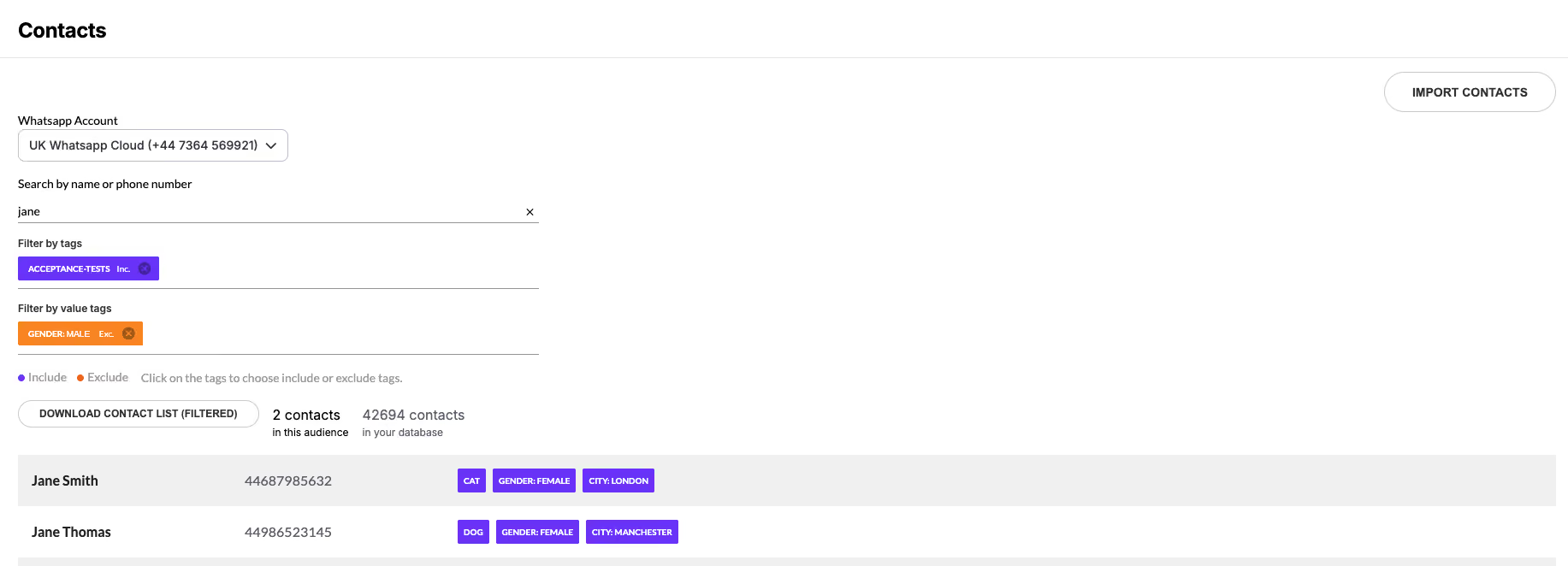
First, we see the WhatsApp Account dropdown, where we can filter contacts based on the WhatsApp Cloud phone number that is integrated.
Next, there is a free text input field, which allows us to search for contacts by either phone number or name. In this example, we are searching for contacts named Jane.
Then, under Filter by Tags, we can see an inclusive filter for the tag "dog", which means it will return all contacts that have the tag "dog".
Finally, under Filter by Value Tags, we find a tag with both a name and a value. In this case, the tag is "gender-male", but it is set as exclusive. This means the filter excludes all contacts with the value "gender-male" from the results.
As a result of the applied filters, we can see two contacts named Jane. Both of them have the tag "dog", and neither of them has a value tag for "gender" with the value "male".
Above the contact list, you can see a Download button. This button generates a comma separated CSV file containing all the filtered contacts in the proper format for import, including all their details, as shown in this other image.
CSV/Excel Format
The downloaded file also serves as a template for imports and updates.
Required columns:
- id → phone number including country code (e.g., 34666555444 for Spain).
- name → any label for the contact.
Optional columns:
- tags → normal tags, separated by commas.
- ValuedTag1, ValuedTag2, … → each valued tag is represented by its own column.
Example:
id,name,tags,gender,city
44687985632,Jane Smith,"cat, dog",female,london
44986523145,Jane Thomas,dog,female,manchester

Rules for Valued Tags:
- To update a Valued Tag, include the column and the new values.
- To remove a Valued Tag from all contacts, include the column but leave all values blank.
- If a Valued Tag column is omitted, it remains unchanged.
Post-conditions
- Contacts are stored in the database and tied to specific WhatsApp phone numbers.
- Once a contact is added, it cannot be deleted.
- Campaigns can only be sent to valid WhatsApp numbers with at least one tag.
Import Contacts
To import new contacts or update them:
- Click the Import Contacts button.
- Select the WhatsApp Cloud number you want to associate the contacts with.
- Upload a file in CSV (comma-separated) or Excel (XLS/XLSX) format.
Note: Only files that respect this format will be processed correctly.
Best Practices
- Always assign at least one tag to every contact, otherwise they cannot be included in campaigns.
- Use valued tags for structured data (e.g., city, age group, customer type) and normal tags for general labels.
- Before importing, download the CSV file to see the correct format and reuse it as a template.
- Apply filters before downloading to export only the relevant subset of contacts.
- Do not omit valued tag columns if you intend to remove them—leave them empty instead.