
Knowledge base: Add sources
Knowledge sources are the documents and web pages that your Conversational App uses to find accurate answers to user questions.
They form the foundation of your Knowledge Base, providing the information that your AI Agent or bot can reference when users ask about topics such as products, policies, or services.
Each knowledge source can be a file (like a PDF, Word document, spreadsheet, or text file) or a URL pointing to a webpage. By combining multiple sources, you help your Conversational App deliver more complete and reliable responses — always based on your most up-to-date information.
How to add new sources
1. Click the Add Source button in the top right-hand corner or the one from the center of the screen.
2. A pop-up will appear, offering two options:
- Add File: upload a file in formats such as `.pdf`, `.docx`, `.xlsx`, or `.txt`. The file size should not exceed 10MB.
- Add URL: provide the link to a webpage that contains the information you want to include.

Naming and uploading a source
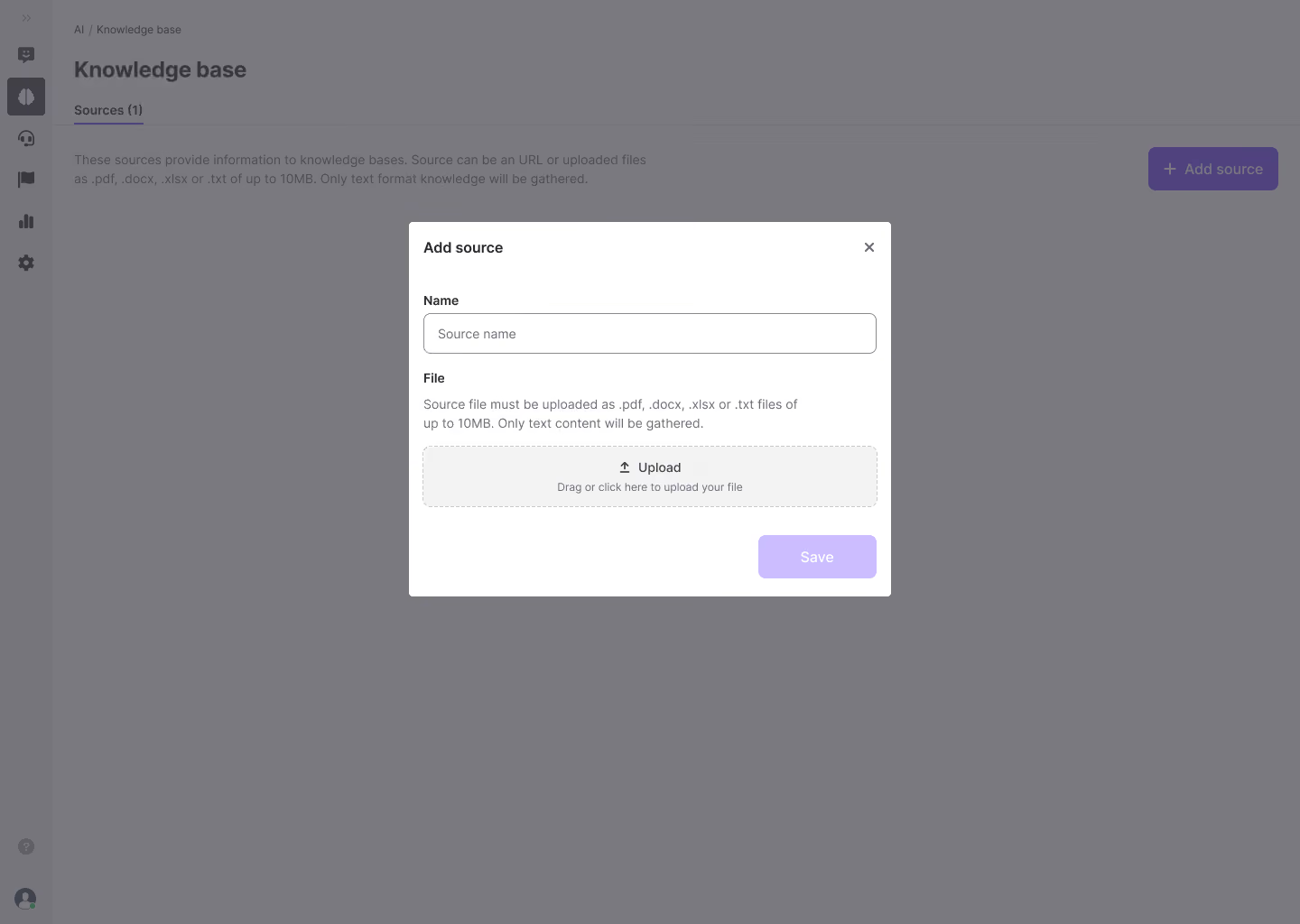
After selecting the source type you want to include, the modal will provide you the options to include its name, upload a file or include a URL.
Follow this steps to configure the source and upload it to the knowledge base:
- Enter a descriptive name for your source (e.g., "General FAQs" or "Return Policy"). This will help you identify it later.
- If you've selected file, you can upload your file by dragging it into the upload area or browsing in your computer.
- For URLs, simply paste the web link into the provided field and select the country from which you want to gather the content.
- Once you've filled out the details, click Save to finalise the addition of the source.

Common errors when adding a source
When defining the name, uploading a file, or including a URL in the Knowledge Base, you might encounter some common errors.
Here's a breakdown of potential issues and how to resolve them:
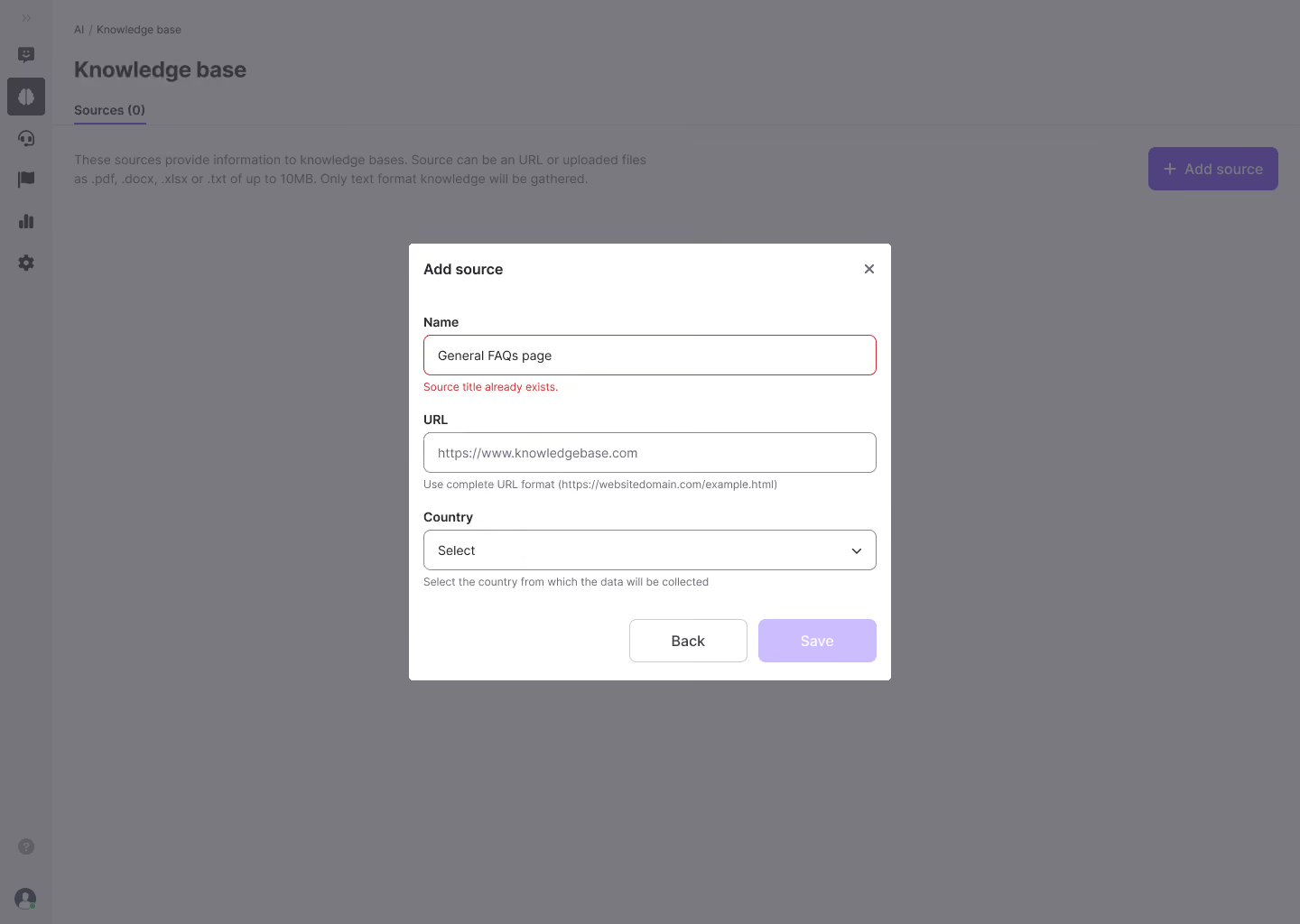
Source name already exists
Each source must have a unique name. If you try to create a new source with a name that already exists in the Knowledge Base, the system will prevent this to avoid duplicate entries.
- Error Message: Source title already exists.
- Resolution: Modify the title by adding a unique identifier or description to distinguish it from existing sources.
Invalid URL Format
When adding a URL, the system requires a valid, complete URL format (i.e., starting with `https://`). If you do not provide a proper URL format, you'll receive the following error:
- Error Message: Invalid URL format (Expected format: https://websitedomain.com/example.html)
- Resolution: Ensure that the URL starts with `https://` and follows the expected web format.

Duplicate URL entry
If you attempt to add a URL that has already been used as a source in the Knowledge Base, the system will not allow it. The system recognizes that this URL has already been processed.
- Error Message: This URL is already in source [source_file_name]
- Resolution: Use a different URL or check if the URL is already added under another name.

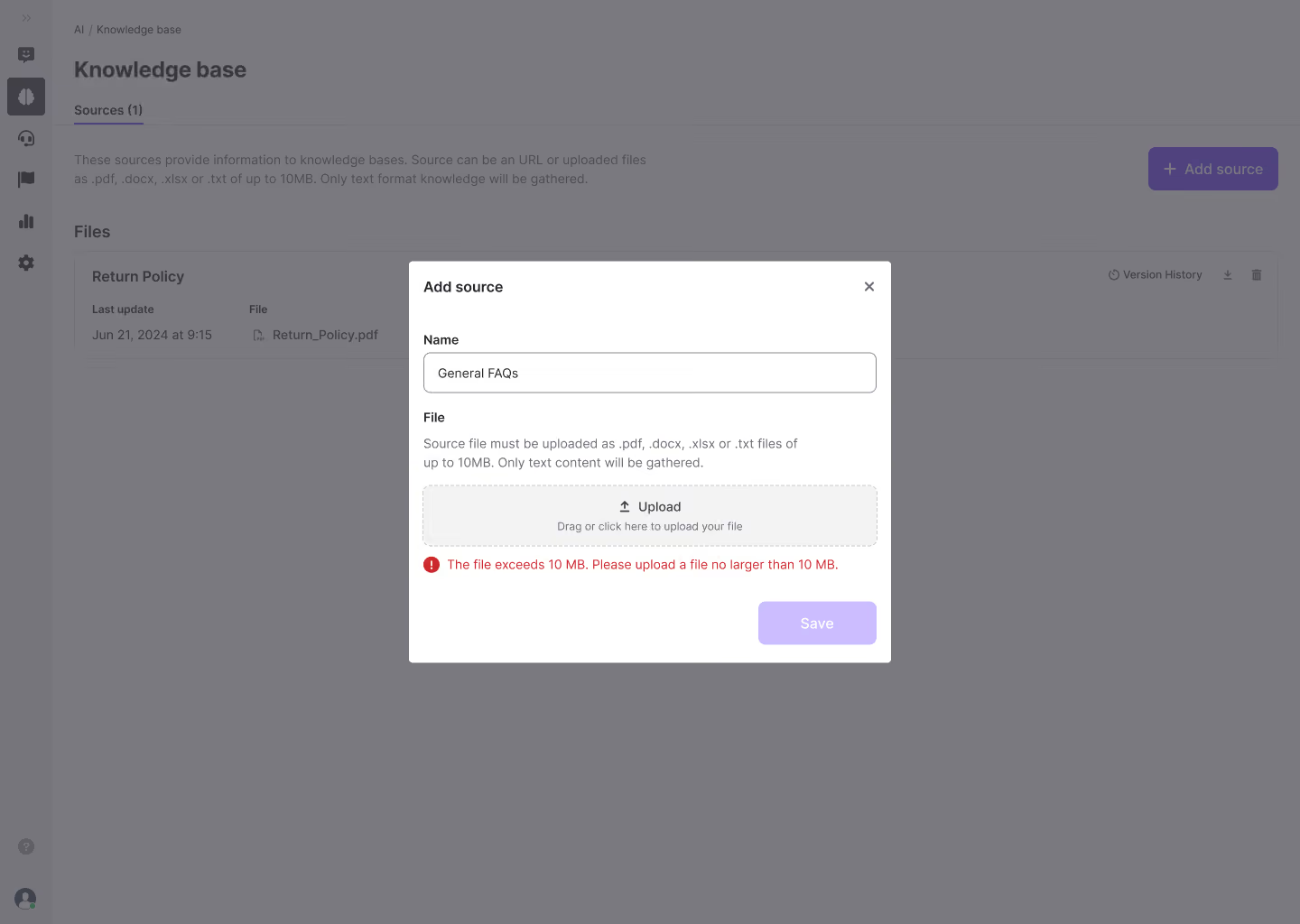
File size exceeds the limit
When uploading a file, the system enforces a file size limit of 10MB. If your file exceeds this limit, you will see an error message.
- Error Message: The file exceeds 10MB. Please upload a file no larger than 10MB.
- Resolution: Compress the file or reduce its size before uploading. Only files under 10MB are allowed.
Error when adding a source
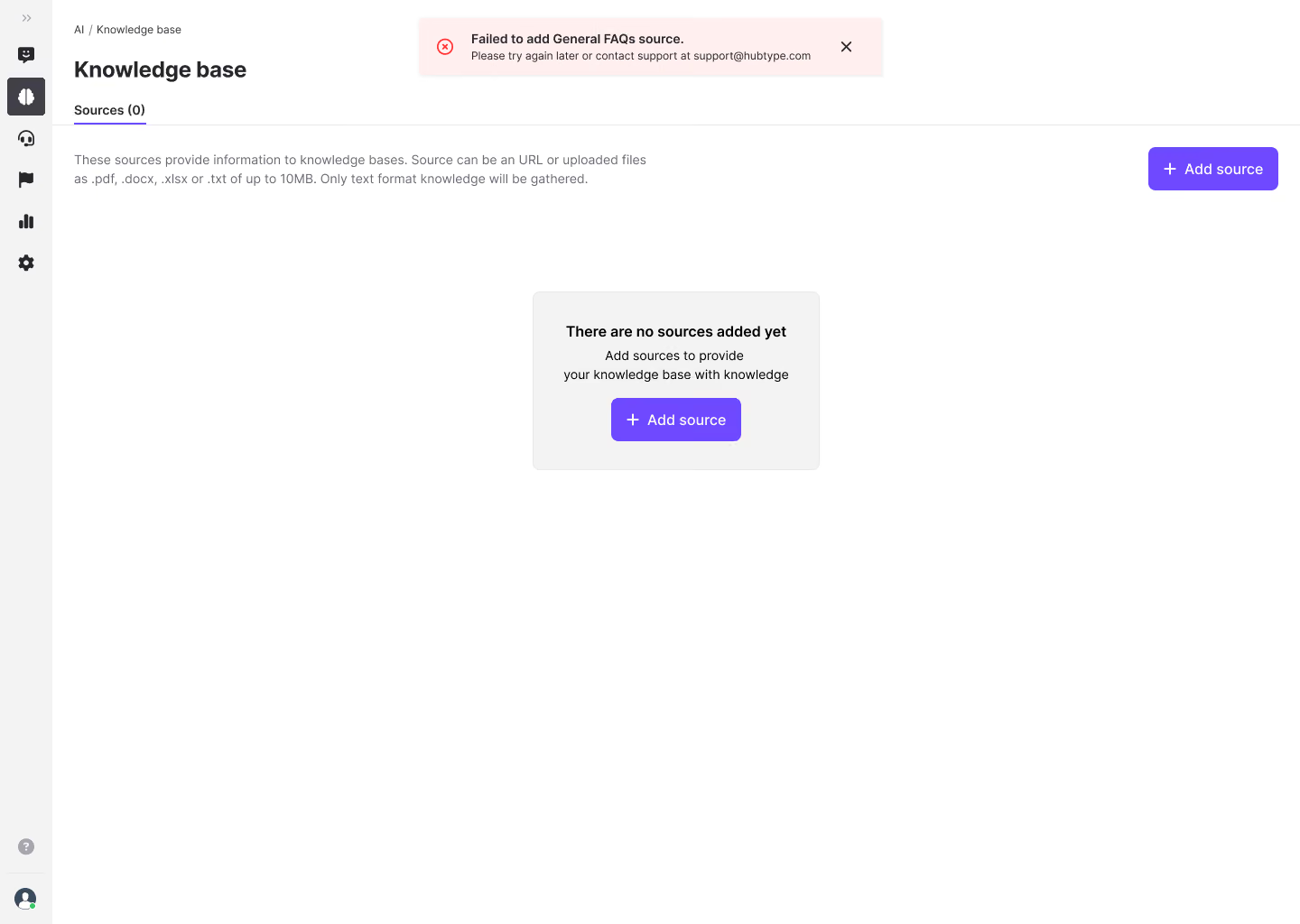
If an error occurs while adding a source, an error message will appear.
- Error Message: Failed to add General FAQs source. Please try again later or contact support at support@hubtype.com.
- Resolution: Wait a few minutes and try uploading the source again. If the issue continues, contact support at support@hubtype.com, and we will assist you in resolving the problem.
By addressing these common errors, you can ensure that the Knowledge Base functions smoothly and your sources are uploaded or linked correctly.
Managing Sources
Once added, your sources will be displayed in the Knowledge Base section. You can see information such as the last update date and the type of source (file or URL). Here are the options you have:
- Sync: For URL sources, click the Sync button to ensure the conversational app is using the latest version of the webpage.
- Version History: Click on the Version History icon to see the past versions.
- Download: For file sources, click the Download icon to download the current version of the file.
- Open: For URL sources, click the Open button and the webpage will be opened in a new browser tab.
- Delete: Click the pencil icon to edit the source or click the trash icon to delete the source if it's no longer needed.
