Evaluator
What is Evaluator?
- Purpose: Automatically score the quality of conversations handled by your AI Agents, so you can see how well the bot answers, whether it resolves the request, and why customers are getting in touch.
- Value: Quality checks that used to depend on manual review now run on their own. Every admin can review scores, pass rate, contact reasons, and the conversation behind each result.
- Who can use it: Admins
Key Concepts
Evaluator looks only at bot conversations with AI Agents. Human agent messages are not included in the score.
Each conversation is rated on a 1–5 scale. A result of 3 or higher is a pass.
- Knowledge score: how accurate and complete the bot’s answers are.
- Service score: how well the bot fulfilled what the user asked for.
- QA score: the average of Knowledge and Service.
- Pass rate: the share of evaluated conversations that passed.
- Contact reason: why the user reached out.
- User mood: how the user’s tone changed from the start of the conversation to the end.
- AI agent issues: guardrails the agent triggered during the conversation.
The dashboard has three areas :
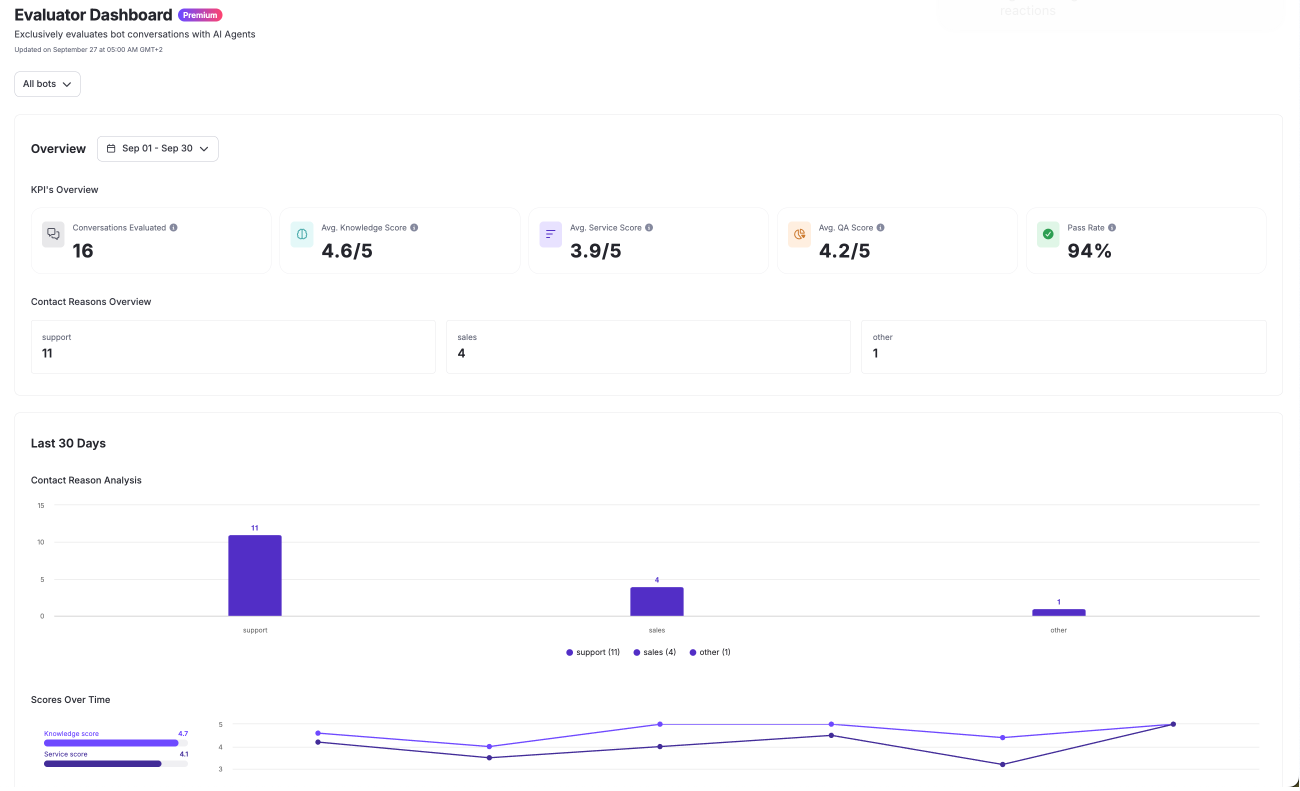
1. Overview summarizes the period you select (conversations evaluated, the three scores, pass rate, and the top contact reasons).
2. Last 30 days shows how contact reasons and scores move over time.
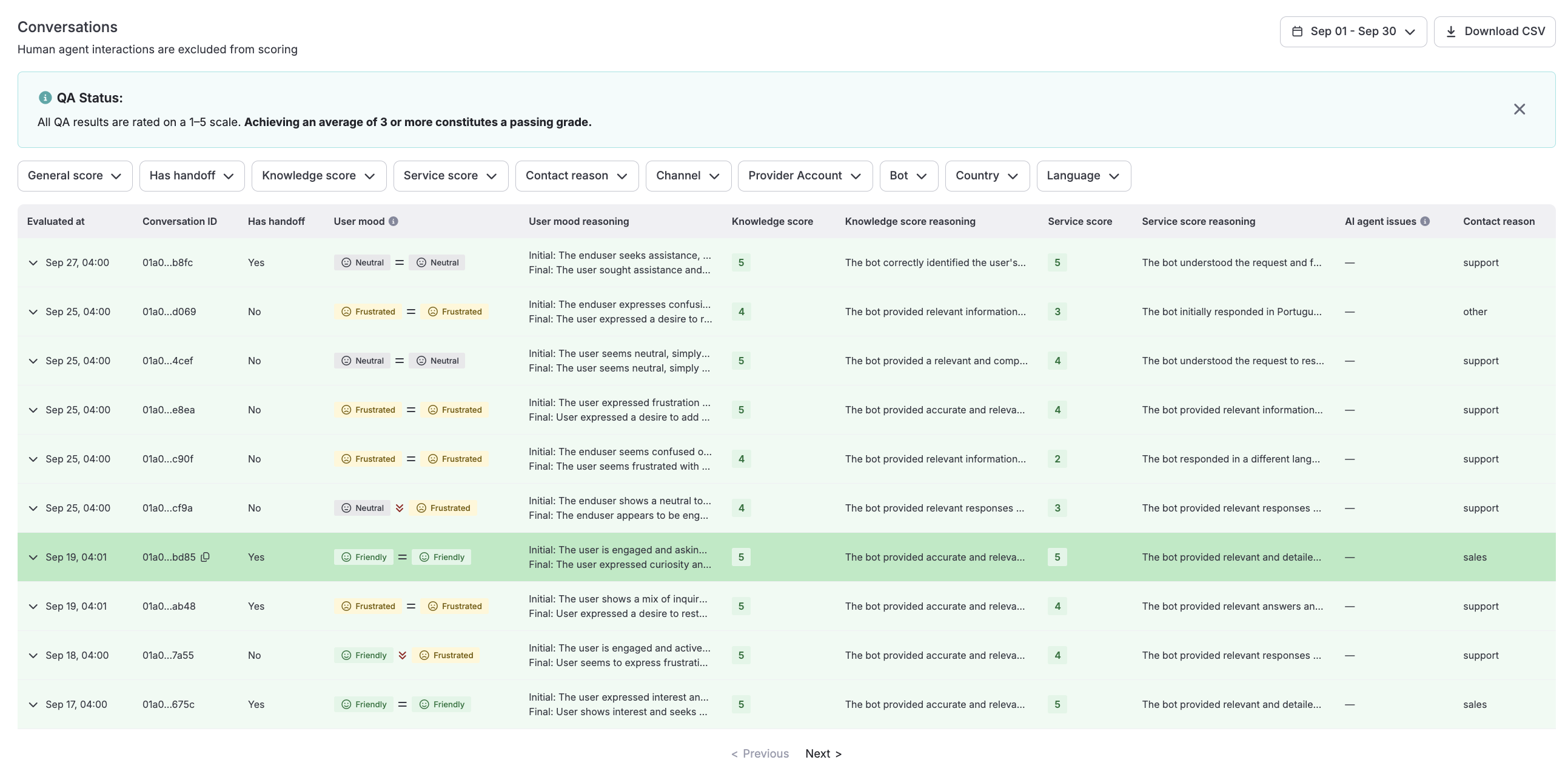
3. Conversations lists every evaluated conversation so you can filter, open the conversation, and export the results.
Feature Tiers:
- Organizations on the Free Plan see a sample of conversations.
- Premium Plan covers every conversation, with the full dashboard and no analysis limit. The plan is shown next to the page title.
Quick-start steps
1. Open Evaluator from the NavBar.
2. Read the Overview. Use the date filter (or the bot filter, when you have more than one bot) to narrow what you are looking at. The header shows when the latest evaluation finished, or that one is still running.
3. Check Last 30 days for contact-reason trends and how Knowledge and Service scores change over time.
4. Go to Conversations. Filter by general score (Passed / Not passed), handoff, knowledge score, service score, contact reason, channel, provider account, bot, country, or language.
5. Click a row to open the conversation next to its scores. Expand a row to read the reasoning behind the mood and the scores.
6. Choose Download CSV to export the conversations that match your current filters and date range.