
Project and queue settings
Project and queue settings
Managers and admins set SLA thresholds, reopen, idle, and discard rules, concurrency, and auto-assignment for each project. Open Project Settings from the gear icon in Inbox.
Project Settings Configuration
This configuration demonstrates a comprehensive customer service management setup with sophisticated SLA monitoring and case assignment capabilities. Managers and Admins access these settings via the gear icon next to each project.
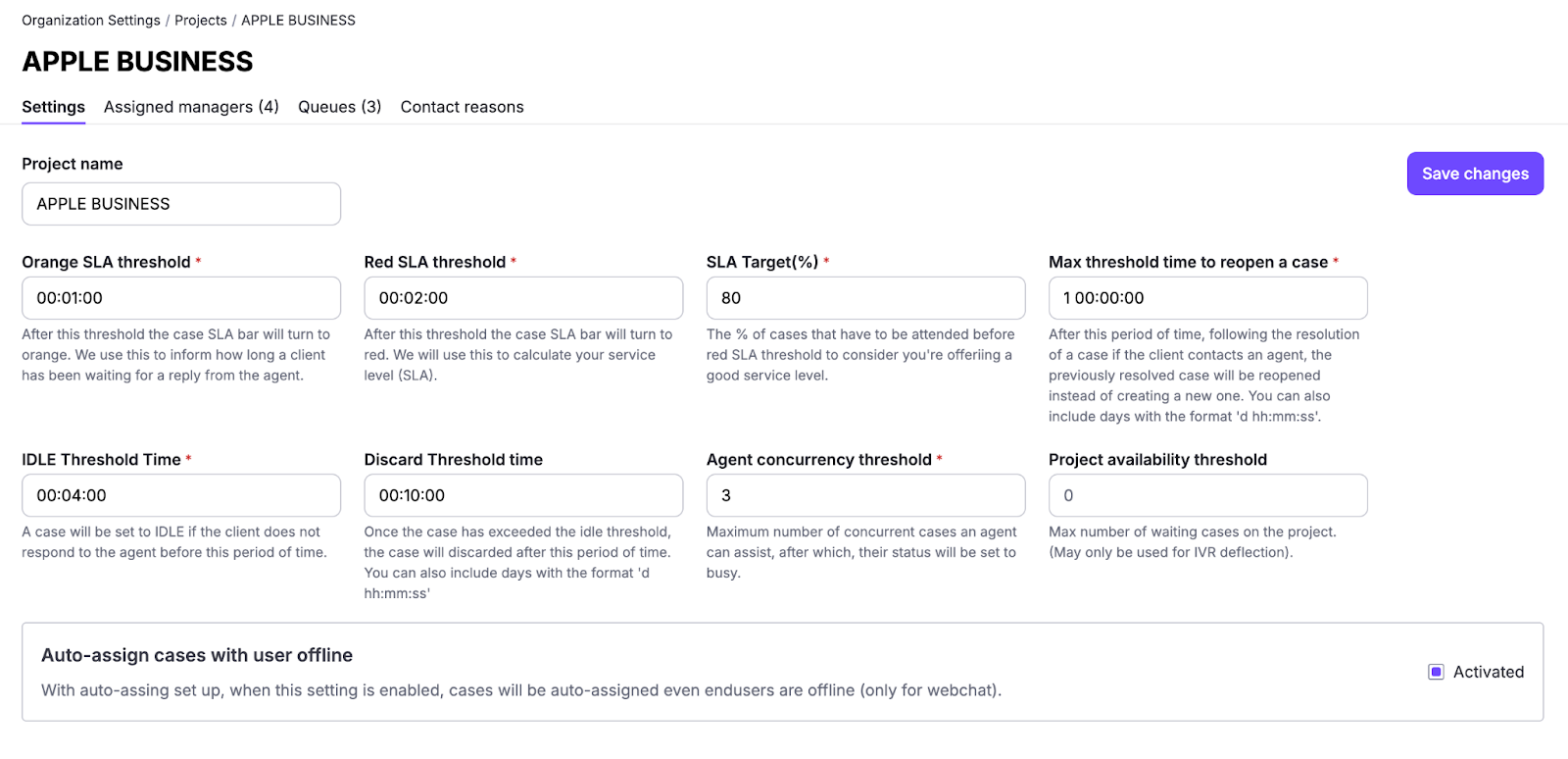
Service Level Agreement (SLA) Configuration
Response Time Thresholds:
- Orange SLA threshold: To be configured by the Organization (e.g., 1 minute) - serves as an early warning indicator when cases are approaching critical response times. Helps agents prioritize before cases become urgent.
- Red SLA threshold: To be configured by the Organization (e.g., 2 minutes) - marks the critical service level breach point that directly impacts overall service quality metrics. Cases reaching this threshold are SLA failures.
- SLA Target: To be configured by the Organization (e.g., 80%) - establishes the operational goal where 80% of all cases must be attended to before reaching the red threshold, setting a clear benchmark for service excellence.
Case Lifecycle Management
Case Reopening Policy:
- Max threshold time to reopen a case: To be configured by the Organization (e.g., 1 day) - if a customer contacts support again within this timeframe after case resolution and the bot decides to escalate to a human agent, the system intelligently reopens the previously resolved case rather than creating a duplicate, ensuring conversation continuity and better tracking.
Case Status Thresholds:
- IDLE threshold: To be configured by the Organization (e.g., 4 minutes) - automatically marks cases as idle when customers don't respond within this timeframe, allowing agents to prioritize active conversations and clear their Attending queue.
- Discard threshold: To be configured by the Organization (e.g., 10 minutes after idle) - cases exceeding the idle time are automatically discarded to maintain queue cleanliness and prevent stale cases from accumulating.
Resource Allocation
Agent Capacity Management:
- Concurrency threshold: To be configured by the Organization (e.g., 3 cases) - defines the maximum number of simultaneous cases an agent can handle before their status automatically switches to "busy," preventing overload and maintaining service quality. When an agent reaches this limit, auto-assignment stops sending them new cases. The bot decides the target queue of the case and If the case is going to be automatically assigned or the agents will have to manually assign the cases.
Note: An agent that is assigned to different projects of different queues will become busy when they reach the minimum number of cases assigned between the thresholds of the different projects. - Project availability threshold: To be configured by the Organization (e.g., unlimited) - sets the maximum number of waiting cases for this project; primarily used for IVR deflection strategies to prevent queue overflow.
Advanced Features
Auto-assignment capability: To enhance agent productivity, the system automatically assigns new cases to available agents when they become available or when a case enters the waiting list while an agent is available. This eliminates the need for manual case assignment, allowing agents to focus on customer interactions rather than case selection.
Assignment When an Agent Becomes Available
When an agent switches their status to available, the system automatically assigns autoassignable waiting cases to them until they reach their configured workload threshold.
To determine how many autoassignable cases the agent can still receive, the system compares their busy threshold (the minimum number of cases required for the agent to be considered busy) with their current case assigned count. This threshold is taken either from the agent’s personal settings or, if applicable, the lowest threshold among the projects they belong to.
The current case count may include:
- Only attending cases (default)
- Both attending and idle cases, if organization setting enabled.
The assignment limit is simply the difference between the busy threshold and the current number of cases.
Next, the system looks for cases that meet all of the following criteria:
- Are waiting to be assigned,
- Are not test cases
- Have automatic assignment enabled. (The bot decides if the handoff will create an auto assignable case or not)
- Belong to queues that the agent is assigned to,
- Have not been previously attended by that agent. So if the agent manually unassigns an autoassignable case, the case will not be autoassigned to him back.
- Webchat cases where the user is offline If the 'Auto-assign cases with user offline' project setting is active.
Eligible cases are ordered first by queue priority (high → medium → low), and then by the age of the last unanswered message (oldest first).
Cases are assigned in this order until the agent reaches their busy threshold or there are no more eligible cases to assign.
Assignment When a Case Enters Waiting State
When an autoassignable case enters the waiting state (whether newly created, unassigned, transferred without a destination agent, or reopened), the system attempts to assign it to the least busy available agent in the case’s queue.
Assignment can be triggered in several situations:
- When a case is created or updated and is eligible for automatic assignment.
- When a case becomes unassigned and remains in waiting state.
- When a case is transferred to a queue without a specific destination agent.
Agent Selection Logic
To determine the best agent, the system filters for agents who:
- Are available,
- Are assigned to the case’s queue
- Have not previously attended the case.
For each eligible agent, the system computes a busy rank:
- Number Attending cases → 60 points each
- Number Idle cases → 40 points each
- Random value between 0 and 10 (used to break ties and distribute load evenly)
Agents are sorted by this busy rank in ascending order, and the case is assigned to the agent with the lowest rank. If no agent is available, the case remains waiting.
Example
Use Case 2: Manager configuring queue settings
Scenario: A manager needs to adjust SLA thresholds and assign new agents to a queue.
Workflow:
- Manager opens Inbox and navigates to Projects and Queues column
- Clicks the gear icon next to the relevant project
- Adjusts Orange SLA threshold from 1 minute to 2 minutes
- Enables auto-assignment for the queue
- Sets concurrency threshold to 3 cases per agent
- Clicks on specific queue settings
- Assigns 3 new agents to the queue
- Saves changes
- New configuration takes effect immediately for incoming cases
Best practices
For Managers/Admins
- Regularly review SLA thresholds to ensure they align with customer expectations and team capacity
- Keep queues organized and balanced, avoid having too many or too few agents per queue
- Maintain a well-structured contact reason taxonomy for cleaner analytics (use categories and subcategories)
- Enable auto-assignment to eliminate manual case distribution and speed up response times
- Configure appropriate concurrency thresholds based on channel type
- Set realistic IDLE thresholds that give customers time to respond without cluttering agent workspaces
Last updated: October 2026