
Flow Builder: Navigate through the flow
You can navigate through the conversational flow in different ways. Let’s look at them one by one so you can choose the one that suits you best.
Click & drag
Click on the Flow Board in an empty area, then drag the flow in the direction you want to move it.
Quick navigation buttons
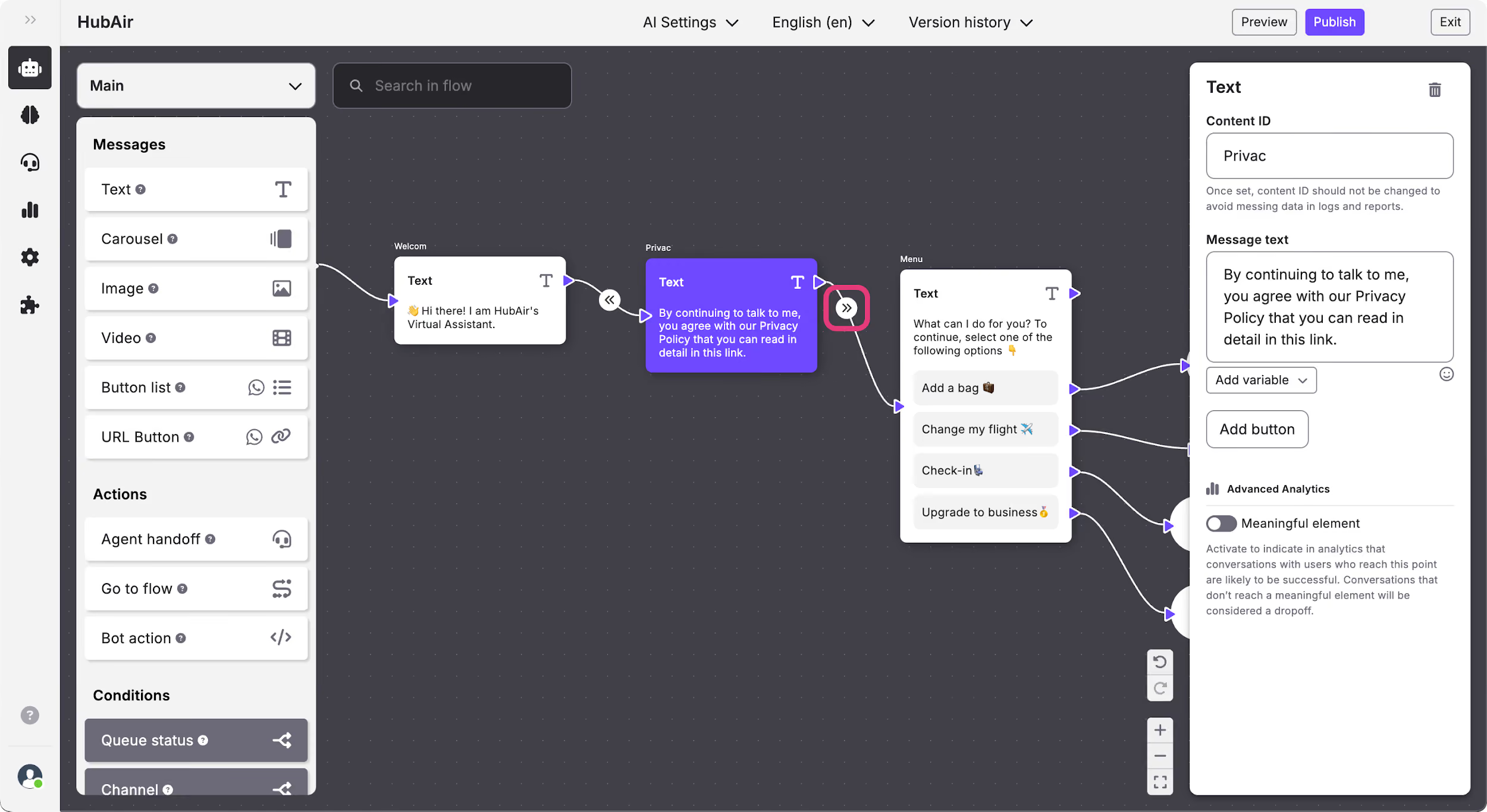
Quick navigation buttons are included in the connections between elements. When you select a content block, you will see a round button with arrows appear on each connection. Clicking this button will take you to the next or previous connected content.
Bottom right menu
When you access Flow Builder you will see a small menu in the bottom right of the screen. Using this menu you can navigate through the flow and visualize the whole flow easily.
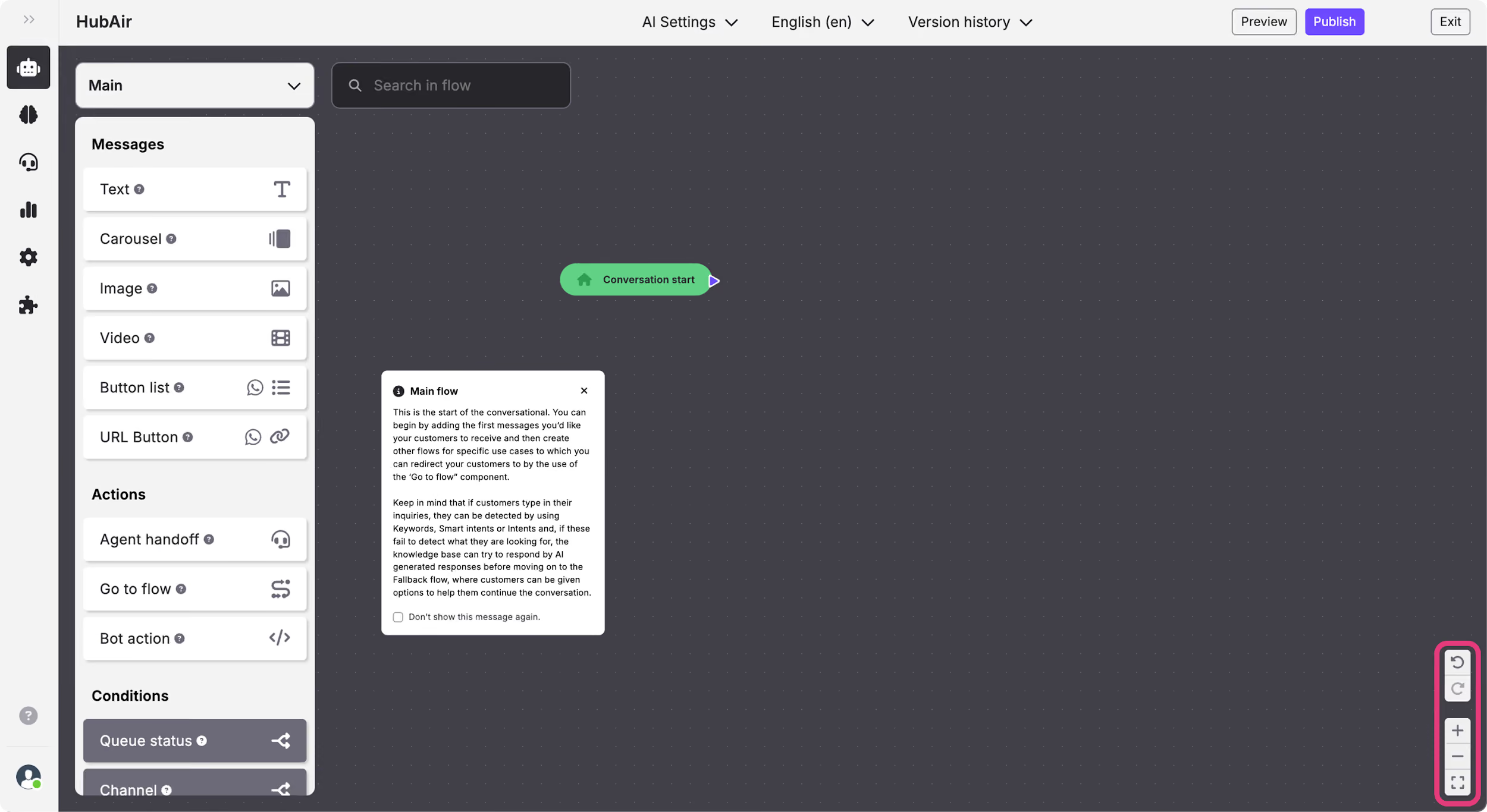
This menu has 5 buttons:
- Undo: Undo the changes that you have done. It can also be done with the keyboard using command+z on iOS and ctrl+z on Windows.
- Redo: Redo the changes that you have undone. It can also be done with the keyboard using command+shift+z on iOS and ctrl+shift+z on Windows.
- Zoom in (+): The flow will be enlarged so that you can see contents in more detail.
- Zoom out (-): The flow will be made smaller so that you can see several contents at the same time within the context of the conversational flow.
- Overall view: The whole flow will be centred in the flow board so that you can see the entire conversational flow at once.