
Update variables in Flow Builder
Update variables sets or clears a session variable or an Info Field, at one step in the flow, so a later message can use that value.
Who can use it
You add it in Flow Builder. If the node is unavailable, you need to update the bot to version 0.58.0 or higher.
How to set or clear a variable
- Open the bot in Flow Builder.
- Drag Update variables onto the canvas.
- Open the node and set Content ID. Leave it unchanged after you set it.
- On Add / Edit, select Add variable.
- Under Variable, choose a session variable.
- Choose Value type: String, Number, or Boolean. If the variable already has a type, Value type stays locked.
- Enter Value. For Boolean, choose True or False.
- To clear a variable, open Remove, select Add variable, and choose the variable.
- Connect the node to the next step.
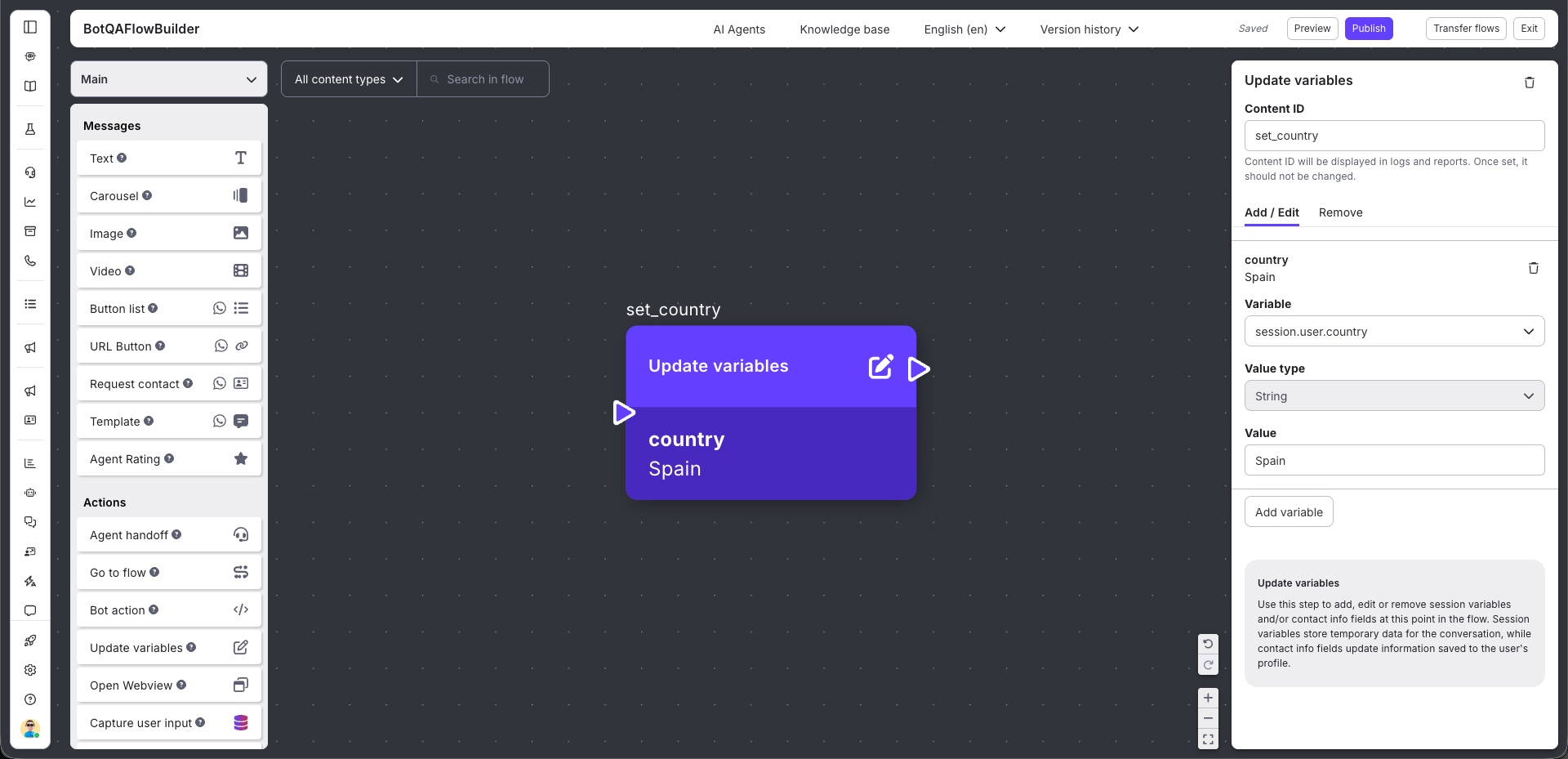
What to expect
You set a session variable to shipped. The next message can include that value, so the customer sees the status you stored at this step.
Good to know
- A session variable is temporary data for this conversation.
- The variable has to start with session. If it does not, the node says Set variable must start with session.
- A Number has to be a number. Boolean is True or False. A String cannot be empty.
- The same variable cannot appear twice in the node. The node says Duplicate variable.
FAQ
Why can't I drag the node?
The bot code does not support it yet. Update the bot so it includes Flow Builder 0.58.0 or higher.
Can I set one variable and clear another in the same node?
Yes. Use Add / Edit for the value you want to store, and Remove for the variable you want to clear. Do not put the same variable on both tabs.
What if I leave a row empty?
An empty row is ignored. A row with a variable and no value shows an error until you fill it in or remove it.